Featured
    

    Social Icons

Loading...

Nokia Android Based Smart Phones Launched


If you are going to purchase a new mobile, then you should go for Nokia X family. so guys let me introduce about Nokia X family. Nokia has been launched their new Smart Phones named Nokia X, Nokia X+ and Nokia XL. Which are the based on Android Open source project.All the mobile come with 3G support and Dual SIM. Nokia X and X+ come with 4'inch IPS LCD Display where as XL comes with 5'inch IPS display. These mobile is a android based phone as well as they have many features.It will be available in India soon.

Nokia X
  • OS:- Nokia X platform 1.0
  • Processor :- 8225 Qualcomm Snapdragon 1GHz dual core 
  • Screen :- 4' inch IPS LCD
  • RAM :- 512 MB
  • Storage :- Internal Storage :- 4GB and External Storage:- up to 32 GB (micro SD)
  • Rear Camera :- 3 Megapixel
  • Front Camera :- Not Available 
  • Networks : - ESGM 850/900/1800/1900  WCDMA  900/2100
  • Wight :- 128.66g
  • Standby Time :- 2G- up to 28.5 days and 3G- up to 22 days
  • Talk Time :- 2G-up to 13 hours and 3G- up to 10 hours
  • Battery Capacity :- 1500 mAh
  • Price :- approximately Rs.7500-7700  

Nokia X+
The Nokia X and X+ have almost same features but Nokia X+ has 768 MB RAM where as Nokia X come with 512 MB RAM. Nokia X+ price is approximately Rs.8400-8800

Nokia XL

  • OS:- Nokia X platform 1.0
  • Processor :- 8225 Qualcomm Snapdragon 1GHz dual core 
  • Screen :- 5' inch IPS LCD
  • RAM :- 768 MB
  • Storage :- Internal Storage :- 4GB and External Storage:- up to 32 GB (micro SD)
  • Rear Camera :- 5 Megapixel auto focus with flash
  • Front Camera :- 2 Megapixel  
  • Networks : - ESGM 850/900/1800/1900  WCDMA  900/2100
  • Wight :- 128.66g
  • Standby Time :- 2G- up to 41 days and 3G- up to 26 days
  • Talk Time :- 2G-up to 16 hours and 3G- up to 16 hours
  • Battery Capacity :- 1500 mAh
  • Price :- approximately Rs. 9300-9600 


How to Download Torrent Files with IDM(Internet Download Manger)


Hello guys today i come with a new trick.All users must be familiar with Torrent by which we can download any kind of files whether it is songs, movies, etc. we can download large files with help of torrent but sometimes you might face difficulty while you downloading torrent files with less Many factors( like seeds etc.)  that's why torrent gives bad downloading speed.
we must be also familiar with IDM (Internet Download Manger) it gives good downloading speed and it's speed doesn't depends on factors (like seeders, leeches,) and it might be torrent is blocked in your college and school then how can you download torrent files?
Imagine if you could download Torrent files with help of IDM. yes! we can download torrent files with help of IDM so guys today I am going to show you how to download torrent files with IDM so follow my Steps and i will show you how to download torrent files with IDM. Steps are given below :-

Step 1:- Open torrent and download file which file you want to download as shown in the below image.

Step 2:- Go to zbigz and sign up there.There are two types of accounts. 
1. Free Account 
2. Premium Account 

Note :- In the free account you can download files less than " 1 GB" if you want to download file more than 1 GB it can not be downloaded  with free account you have to make premium account to download large Files (more than 1 GB).

Step 3:- After downloading torrent file you have to upload file there. as shown in the below image.

  1. Click on the upload torrent files
  2. Select your file which file you want to ulpoad.
  3. Click on the "GO" as shown in the below image.


Step 4 :- Select "Free" option after that your file will be ready to download.

Step 5 :- These process can take time (according to file size) after zipping you can click on the "Zip" option to download file.


Thus you can download torrent files with help of IDM. 
Enjoy guys ;)


Hide your Number From TrueCaller


Every user must be familiar with TrueCaller Application this app helps you to get details of any number.this is very useful app for users.If any unknown person disturb you to make a fake call then you can get details with help of this Application.
Do you want hide your ID from TrueCaller If yes!! then follow my steps and i will show you how to hide any number from TrueCaller. This is the simple and official way to hide your ID.Steps are given below:-
Step 1:- Go to TrueCaller Click here
Step 2:- Now you have to enter your Mobile number (with country code) which number you want to hide from it.
Step 3:-Type Verification code. 

Step 4:- Click on Unlist option. now its done!
So finally your number has been unlisted from TrueCaller. You can try to search your Mobile Number on TrueCaller result will be "No Matches Found".


The easiest way to secure your Wi-Fi


Sometimes your WiFi network get slow at your home or office.Have you ever thought about it.there are two reasons by which your WiFi network get slow.

  1. because of Network failure.
  2. Might be your WiFi network is being stolen without your notice.

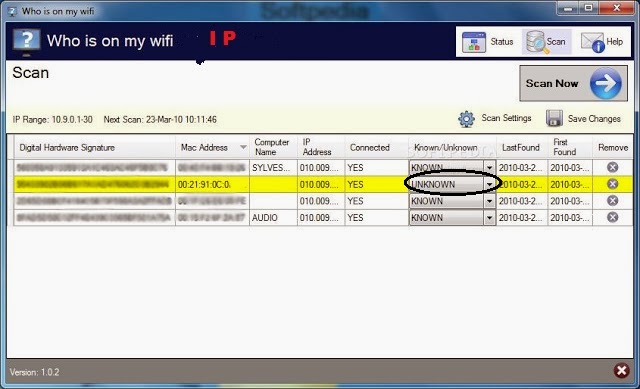
Network failure problem can be solved by service provider but but hacking problem can not be solved by them and some user can't find out that from where it is being stolen or which device is connected with your WiFi network.So hackers make use their innocence but no problem ! i have a solution by which you can find out who is using or connected with your WiFi network.So guys get ready to know how to save your WiFi network from hackers i have a easiest way to secure your WiFi network.

First you have to go www.whoisonmywifi.com  and download the software for free. and install in your PC. it will show you which gadget is connected with your WiFi network. If any unknown device is connected than it will inform you also by e-mail or voice massage by which you can save your WiFi network to change your security password.

There are more way to secure your WiFi network but some innocence people don't know about security of their WiFi network So it is the best way for them they should go for this software.


 More way to secure your WiFi network follow them :-

  • Set encryption to WPA-PSK of WiFi router.
  • Turn on MAC Address Filters.
  • Whenever users shutdown their computer then they forget to turn off their WiFi.So turn off your WiFi router while you are not using it. 
  • users should check every day their "Data Uses" how many data has been used.
  • Keep change password once in a week. 
  • Don't share your WiFi password to your Friend :P
Make secure your WiFi.  


Useful Keyboard shortcuts for Facebook

Almost all users use shortcut keys in computer while they working.even you might be using it.shortcuts keys help us to make your work easy.even i use also like cut, copy, paste.Almost all Facebook users spend 1 hour on Facebook and they use keyboard while they chating with their friends and comment on any post but they do other work with help of mouse like open message, notification .so there many shortcuts key for Facebook. We can use them for Facebook. so today i going to show you the all Facebook shortcut keys.

Note :- Before using Facebook keyboard shortcuts, determine the modifier keys for your computer, which is based off what browser and operating system you are using.

If you are using Window+Google Chrome or Internet Explorer then follow these shortcuts :-

  • Alt+M - Open a new message
  • Alt+? - Go to the Facebook Search
  • Alt+1- Home or News Feed
  • Alt+2- Your Profile page
  • Alt+3-Friend request
  • Alt+4-Messages
  • Alt+5- Notifications
  • Alt+6-Your Account settings
  • Alt+7- Your privacy settings
  • Alt+8-Go to the Facebook page
  • Alt+9-View Facebook statement and Right agreement
  • Alt+0 -To open Facebook help center

If you are using Window+Firefox then follow these shortcuts :-

  • Alt+Shift+M- Open a new message
  • Alt+Shift+?-Go to Facebook Search
  • Alt+Shift+1- Home or News Feed
  • Alt+Shift+2-Your profile page
  • Alt+Shift+3- Friend request
  • Alt+Shift+4-Message
  • Alt+Shift+5-Notification
  • Alt+Shift+6-Your Account settings
  • Alt+Shift+7-Your privacy settings
  • Alt+Shift+8-Go to the Facebook page
  • Alt+Shift+9-View Facebook statement and Right agreement
  • Alt+Shift+0-To open Facebook help center

If you are using OSX+Firefox then follow these shortcuts :-

  • Function+Ctrl+M-Open a new message
  • Function+Ctrl+?-Go to the Facebook Search
  • Function+Ctrl+1-Home or New feed
  • Function+Ctrl+2-Your profile page
  • Function+Ctrl+3-Friend Request
  • Function+Ctrl+4-Messages
  • Function+Ctrl+5-Notification
  • Function+Ctrl+6-Your account Settings
  • Function+Ctrl+7-Your Privacy Setting
  • Function+Ctrl+8-Go to the Facebook Page
  • Function+Ctrl+9-View Facebook Statement and Right agreement
  • Function+Ctrl+0-Open Facebook help center


If you are using OSX+Other then follow these shortcuts :-

  • Option+Ctrl+M-Open a new Message
  • Option+Ctrl+?-Go to the Facebook Search
  • Option+Ctrl+1-Home or News Feed
  • Option+Ctrl+2-Your profile Page
  • Option+Ctrl+3-Friend request
  • Option+Ctrl+4-Messages
  • Option+Ctrl+5-Notification
  • Option+Ctrl+6-Your Account settings
  • Option+Ctrl+7-Your Privacy settings
  • Option+Ctrl+8-Go to the Facebook Page
  • Option+Ctrl+9-View Facebook Statement and Right agreement
  • Option+Ctrl+0-Open Facebook help center


How to Change User Account Password Without Old Password in Window 7


Hello Guys...today i come with a cool trick which is works in window 7. Whenever we try to change user account password that time we have to type old password  before changing. Imagine you are using your friend's computer/Laptop and you want to change their user account password and you don't know about old password if you could change it without old password. Thus you can make your friend annoyed .So I have a trick by which you need't to type old password. you will be able to change user account password without old password. Yes! you can change password without typing old password so follow my guide and i will show you how to change user account password without old password in window 7.
  • step 1 :- Right Click on my computer
  • step 2 :- select option "Manage"
  • step 3 :- After selecting this option a computer management window will be opened after that you have to select"Local users and Groups" which is shown in the below image.


  • step 4 :- After that you have to select "users" which is shown in the below image.


  • step 5 :- Now right click on account (which account you want to change their password) 


  • step 6 :- Now select "set password" after selecting this option a window will be shown then you have to click on the "proceed" which is given in the below image.


  • step 6 :-  Now set your new password for user account.


Note :- If you want to change Admin Account password through Guest Account so it can not be changed 

How To Place Facebook Chat On Firefox Sidebar

Hello guys...Today i am come with new Facebook trick .There are not need to explain about Facebook.Facebook is the biggest social network in the world.Facebook has many features such as sharing, chat,video chat etc . Facebook chat is cool because it allows you to send instant massage to other.i am addict of it. whenever i work in my PC then i open an another tab to operate Facebook to chat. Imagine if you could place Facebook chat on sidebar so it will be make your work easy by which you can do both works in same tab.so today i am going to show you how can we place chat on Firefox sidebar.
follow my guide and i'll show you how to place Facebook chat on Firefox sidebar ?

  • step 1 :- open Firefox browser
  • step 2 :- open Bookmarks option in that you have select unsorted Bookmarks which is shown in                 the below image.


  • step 3:- After that a new window will be opened in that window you have to select "New                             Bookmarks" option which is shown in the below image.

  • Step 4 :- After selecting there will be opened a new Bookmark window so you have to make a new Bookmark.enter the following:-

  1. Name : Facebook Chat
  2. Location : http://www.Facebook.com/presence/popout.php
  3. Select Load this bookmark in the sidebar  


  • Step 4 :- Launch the Facebook sidebar and start chating with your friend ;)

Note :- If you have any problem about this trick then you can comment i will be there to help :)

  
© Copyright Information Planet
Back To Top